

Compute Profiles
Compute profiles define named CPU and memory combinations that standardize VM sizing across your platform. Similar to instance types in AWS, flavors in OpenStack, or VM sizes in Azure, but defined by you. Instead of letting every user pick arbitrary CPU and memory values, you define a set of profiles that make sense for your environment.
Understand compute profiles
A compute profile is a simple pairing of vCPU count and memory allocation with a human-readable name. When users create or scale VMs, they select a compute profile rather than specifying raw values.
This approach has practical benefits:
- Predictable sizing. Users pick from a menu instead of guessing how much memory they need. "Give me a Medium" is clearer than "give me 4 vCPUs and 8192 MiB of RAM."
- Capacity planning. When you know the set of possible VM sizes, planning host capacity becomes straightforward.
- Quota enforcement. VDC quotas are expressed in vCPUs and memory. Standardized profiles make it easy for users to understand how many VMs they can create within their quota.
- Billing simplification. If you charge customers per VM, profiles map directly to pricing tiers.
Compute profiles are stored in a Kubernetes ConfigMap on the management cluster. They are tenant-wide, so the same profiles are available across all zones and VDCs.
Create profiles
Navigate to Platform > Compute Profiles in the portal. Here you can create, edit, and delete profiles.
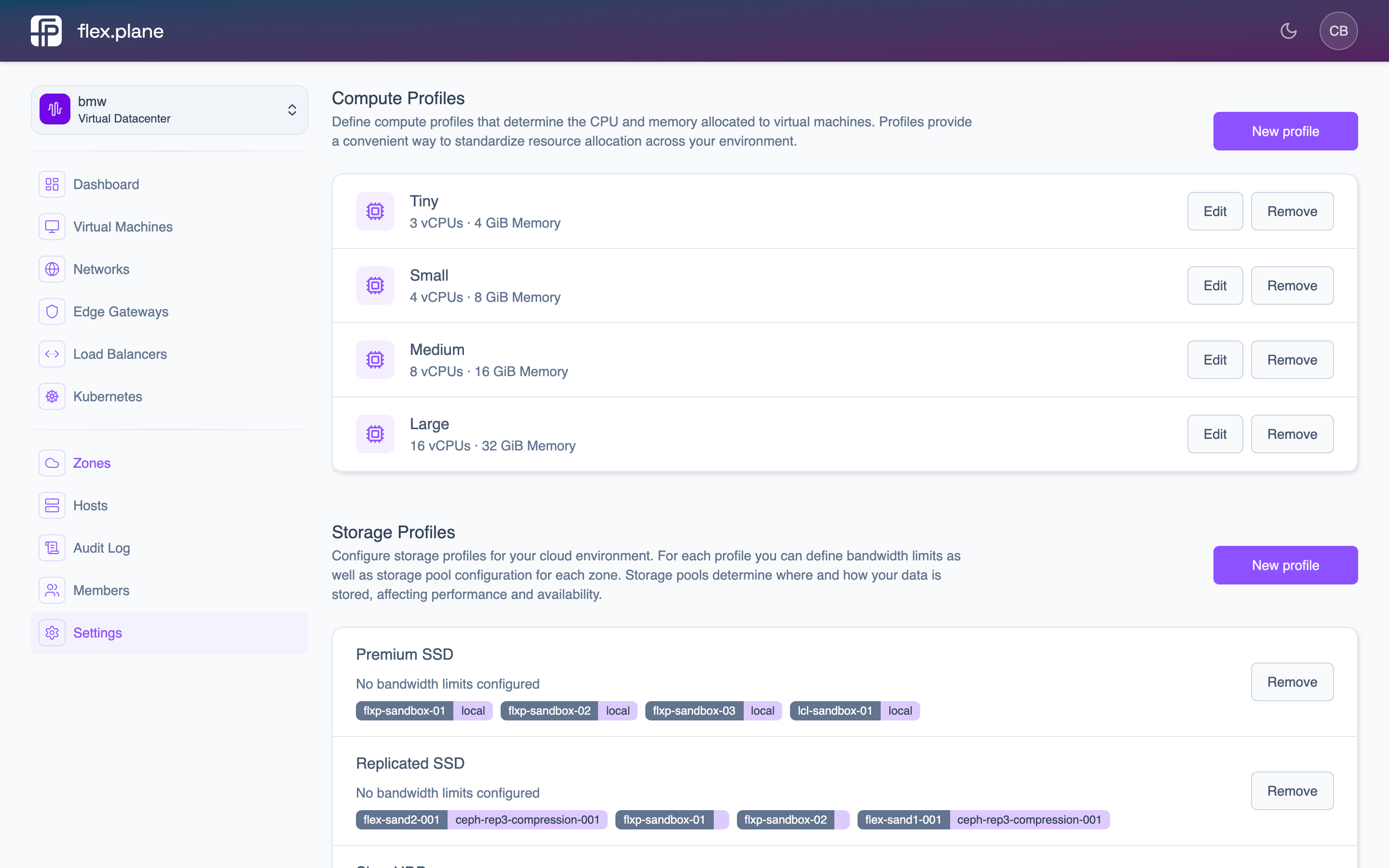 The Compute Profiles page lists all available profiles with their vCPU and memory allocations.
Each profile specifies a name, cpus (vCPU count), and memory (in MiB). Valid ranges are 1--64 vCPUs and 1024--131072 MiB (1 GiB to 128 GiB).
Use profiles when provisioning
When creating a VM, you select a compute profile from the dropdown in the creation form.
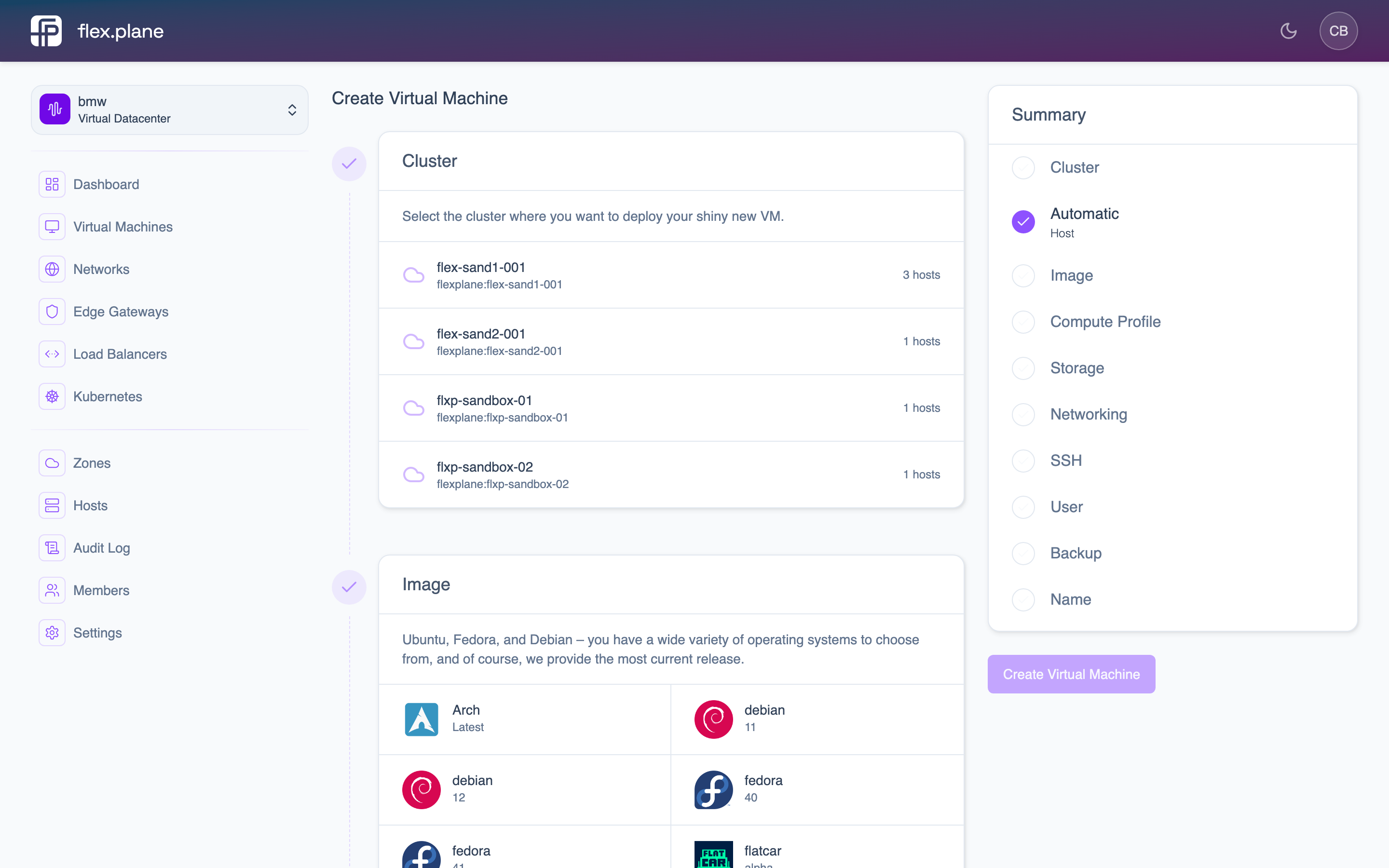 The VM creation form lets you select a compute profile, storage profile, image, and network.
To resize a running VM, use the Scale action on the VM's detail page to select a different profile.
Compute profiles work alongside storage profiles and the image catalog to define the three choices a user makes when creating a VM. The scheduler uses the selected compute profile's memory requirement to decide which host has enough capacity.
Zones and Hosts
Zones map to Proxmox clusters and define failure domains. Hosts are the physical nodes within a zone, discovered automatically via the mesh overlay network.
Storage Profiles
Map Proxmox storage pools to zones with configurable I/O limits. Abstract away Ceph, ZFS, or LVM behind named profiles with predictable performance.