

Clone and Migrate VMs
flex.plane supports two ways to replicate or relocate virtual machines: cloning creates a copy, and migration moves the original to a different host. Both operations are accessible from the VM list and the VM detail page.
Clone a VM
Cloning creates a new VM based on an existing one. You get a fresh copy with its own identity (new VM ID, new name) but the same disk contents, configuration, and network setup.
In the portal, open the VM's action menu and select Clone. You'll be asked for a name and whether to create a full or linked clone.
The full vs linked clone option controls the clone strategy:
- Full clone: creates a full (independent) copy of all disks. The cloned VM has no dependency on the original. This takes longer and uses more storage, but the clone is completely self-contained.
- Linked clone: creates a linked clone that shares the base disk with the original VM. This is faster and uses less storage, but the original VM's base disk must remain available.
Migrate within a zone
Migration moves a VM from one host to another within the same zone. This is useful for host maintenance, load balancing, or hardware upgrades.
In the portal, click the migrate button (arrow icon) in the VM's action row. Select the destination host and confirm.
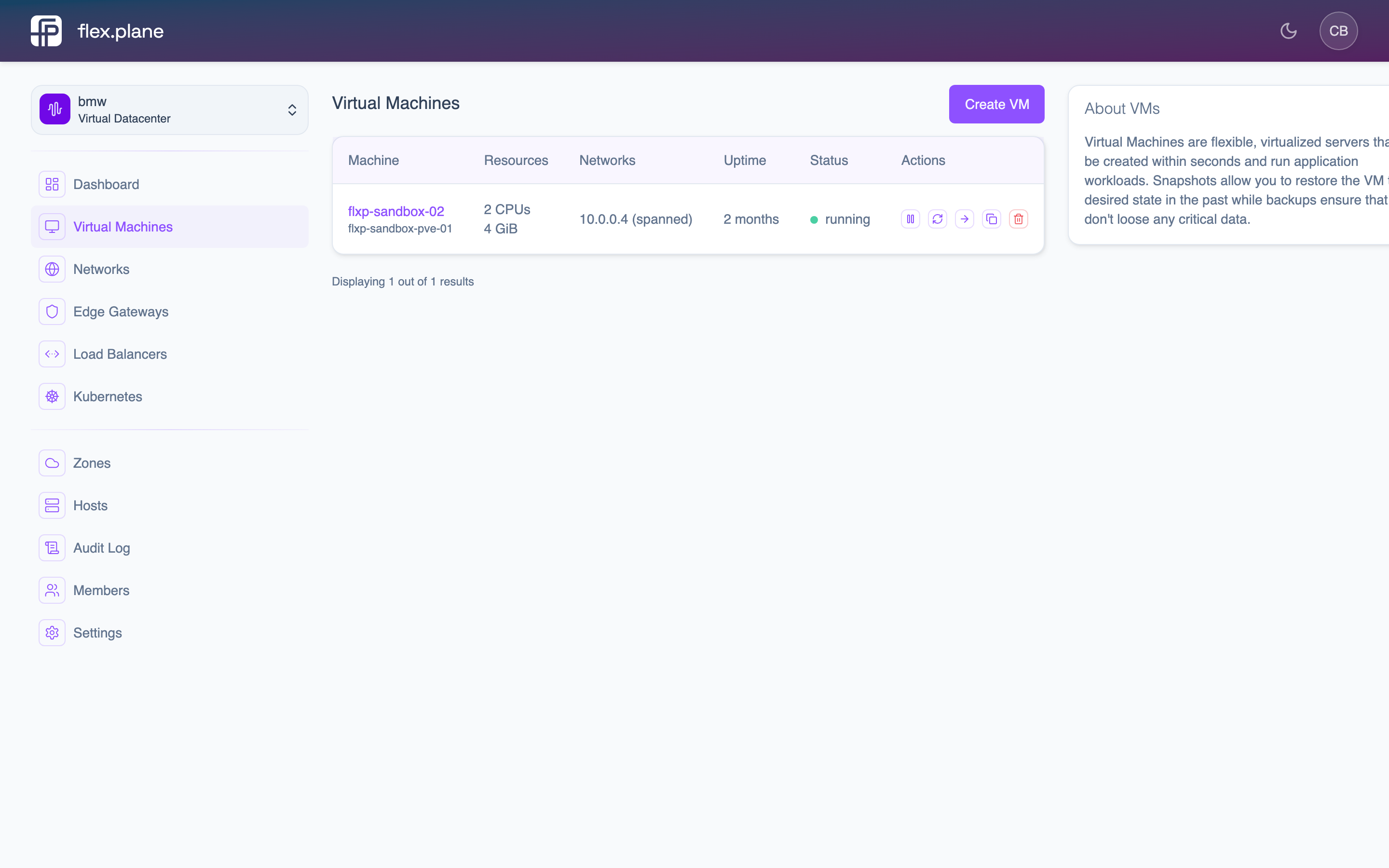 The migrate button in the VM action row lets you move a VM to a different host.
Migrate across zones
Cross-zone migration works the same way. Select a destination host that belongs to a different zone. The platform handles the data transfer across zone boundaries.
Cross-zone migration involves copying disk data between zones, so it takes longer than intra-zone migration. The VM's network configuration is preserved, but you should verify that the destination zone has access to the same networks.