

Resource Quotas
Resource quotas prevent any single Virtual Datacenter from consuming more than its fair share of the platform's compute capacity. They are enforced at VM creation and resize time. If an operation would push the VDC over its limits, it is rejected.
Understand quotas
Each VDC can have two quota dimensions:
| Quota | What it limits | Unit |
|---|---|---|
| maxVCPUs | Total virtual CPU cores across all VMs in the VDC. | Integer (cores) |
| maxMemoryMiB | Total memory across all VMs in the VDC. | Integer (MiB) |
Quotas are optional. A VDC without quotas has no resource limits. It can consume whatever the underlying infrastructure provides. This is fine for single-tenant deployments or dedicated environments, but for shared infrastructure you will want quotas on every VDC.
Enforcement works like this:
- A user requests a new VM with 4 vCPUs and 8192 MiB of memory.
- The orchestrator sums up the resources of all existing VMs in the VDC.
- If the new VM would push the total past either quota limit, the request is rejected.
- Otherwise, the VM is created normally.
Plan capacity
When setting quotas, think about the tenants' workloads and the total capacity of your infrastructure.
Example: You have 3 Proxmox nodes with a combined 192 CPU cores and 768 GiB of RAM. You want to serve 4 tenants with roughly equal capacity, leaving some headroom for the platform itself.
| VDC | maxVCPUs | maxMemory |
|---|---|---|
tenant-a | 40 | 160 GiB |
tenant-b | 40 | 160 GiB |
tenant-c | 40 | 160 GiB |
tenant-d | 40 | 160 GiB |
That allocates 160 of 192 cores and 640 of 768 GiB, leaving comfortable headroom.
Some rules of thumb:
- Development/staging VDCs can have tight quotas. Developers do not usually need large VMs.
- Production VDCs need room to scale. Set quotas based on peak expected usage plus a buffer.
- Shared services VDCs (DNS, monitoring, bastion hosts) typically need minimal quotas.
Monitor usage
The portal displays quota usage visually in the dashboard, showing how much of each limit is allocated and how much remains available.
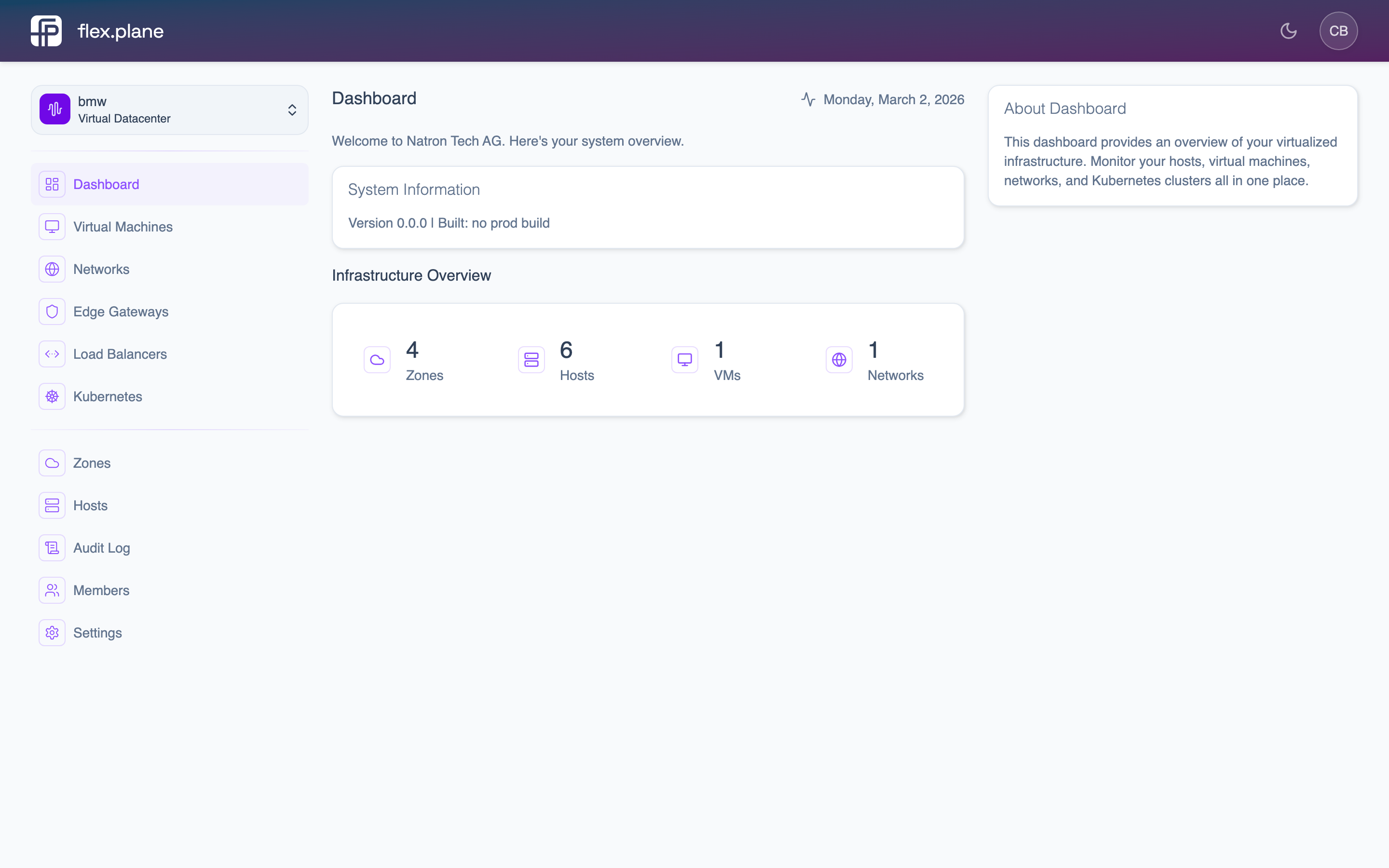 The dashboard displays current resource allocation against quota limits for the selected VDC.
You can also see per-VM resource allocation on the VM list page to understand which VMs are consuming the most quota.
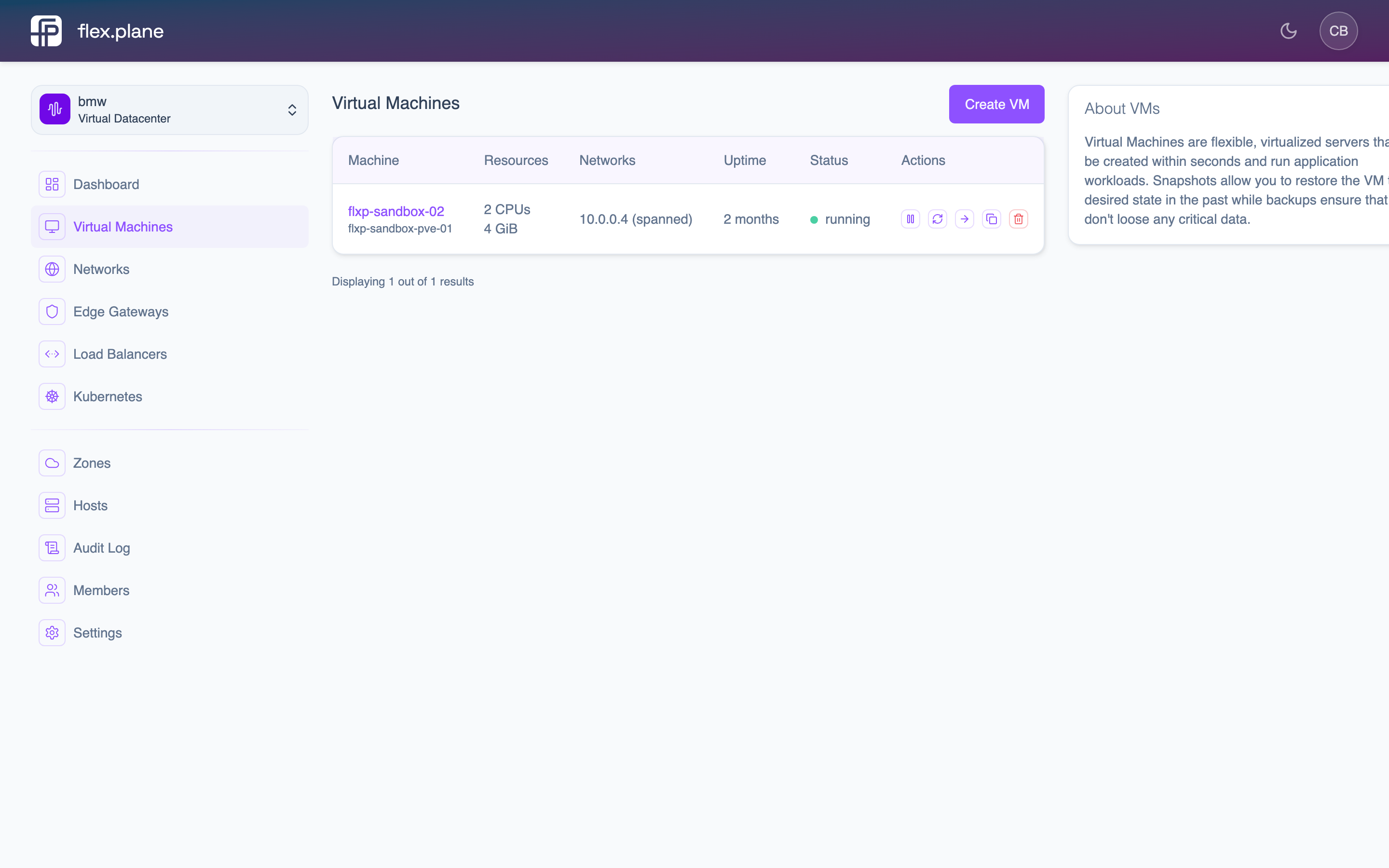 The VM list shows CPU and memory allocation for each VM, helping identify where quota is being consumed.