

Manage the Image Catalog
The image catalog defines which operating system images are available for VM creation. Each image entry points to a downloadable cloud image and a checksum file for integrity verification. When a user creates a VM, the agent downloads the image to the Proxmox node if it is not already cached locally.
Manage the image catalog from the Settings page in the portal. The Image Catalog section shows all configured images with their versions and source URLs.
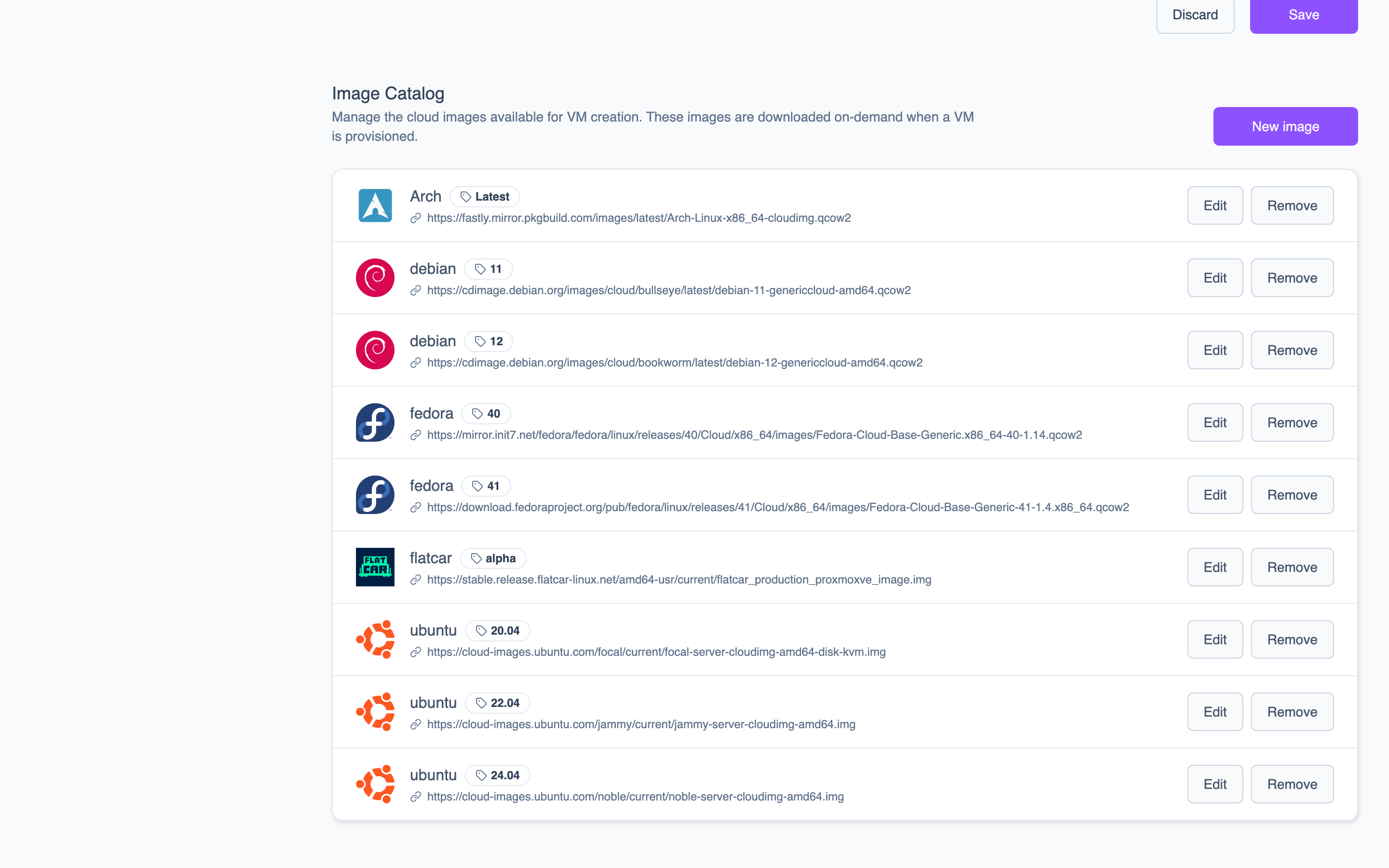 The Image Catalog section lists each OS image with its name, version, source URL, and edit/remove actions.
Add an image
Each image requires:
| Parameter | Description | Example |
|---|---|---|
name | The OS name. | Ubuntu Server |
version | The OS version. | 24.04 LTS |
sources.amd64 | Direct URL to the amd64 cloud image. | https://cloud-images.ubuntu.com/releases/24.04/release/ubuntu-24.04-server-cloudimg-amd64.img |
checksumFile | URL to the checksum file for verification. | https://cloud-images.ubuntu.com/releases/24.04/release/SHA256SUMS |
In the portal:
- Navigate to Settings.
- In the Image Catalog section, click New image.
- Fill in the name, version, source URL, and checksum URL.
- Click Save.
Common images you might want to add:
| Name | Version | Source |
|---|---|---|
| Ubuntu Server | 24.04 LTS | cloud-images.ubuntu.com |
| Debian | 12 | cloud.debian.org |
| Rocky Linux | 9 | dl.rockylinux.org |
| AlmaLinux | 9 | repo.almalinux.org |
Update an image
To update an existing image's metadata or URLs (for example, when a new point release is published), click Edit next to the image and modify the values.
Remove an image
To remove an image from the catalog, click Remove next to it. Removing an image does not affect existing VMs or cached image files on nodes. It only prevents the image from being selected for new VMs.